
The portal consists of 6 main categories. Here's how to navigate this portal and what to expect.
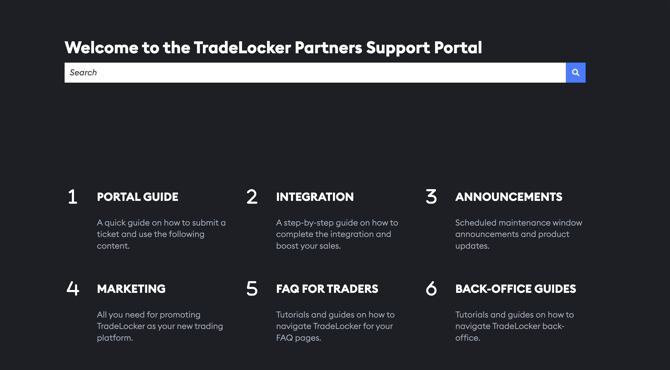
1. Portal guide
This support portal is a comprehensive online resource hub that offers TradeLocker clients access to essential information.
- It includes integration guidelines, platform maintenance updates, and details on new product releases.
- Additionally, it provides a repository of marketing materials to assist in promoting TradeLocker to traders more effectively.
- You can also submit a ticket to the TradeLocker team in case you need help with anything. Here's how.
Note: You may not see all content on this portal if you are not signed in.
2. Integration
Here, you can find step-by-step guides on how to complete and announce the integration with TradeLocker. All the way from the API documentation to ready-to-use PR article templates and feature mockups.
3. Announcements
Your go-to place to get notified about:
- Scheduled maintenance windows
- Product updates
4.Marketing
Your marketing team is going to love this section. We’ve prepared content that will help you promote our partnership, here is what to expect:
1. General info
This section contains the main information to use for promoting TradeLocker, an overview of TradeLocker features, useful links and the TradeLocker roadmap.
2. Branding and media kit
This section contains all branding materials such as the logo, font, and the TradeLocker brandbook. Also, we've created a website template to use on your TradeLocker page.
3. Social media and email content
Find links to all social media accounts and content (videos & images) you can use in your communication with your traders.
Feel free to use this content on your website, in the newsletter or on your Instagram. Everything is edited and prepared for posting.
5. FAQ for traders
There are more than 50 guides and YouTube videos about trading that you can paste to your website or social media and help your traders get started, use our main features, and trade more effectively.
- Getting started
- Interface
- Charting
- Trading
- Studio