
In this guide, you can see what the back office consists of and what you can do within it.
Here's what you will see upon logging in to back office:
.png?width=430&height=434&name=mceclip1-768x776-1%20(1).png)
Users
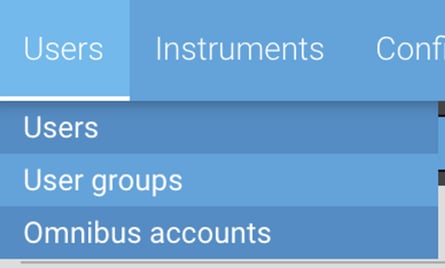
In the Users view, you have access to Users, User Groups and Omnibus accounts. From here, you can also add new users and user groups, for example, if you’re creating groups for various challenges for a new prop firm client.
Users gives you access to specific user settings. You can search by Account ID, Login, Account Name, Email, Name, User group, Creation date, Last login and Omnibus account name. Once you find an account you’re interested in, you can select it and edit various settings.
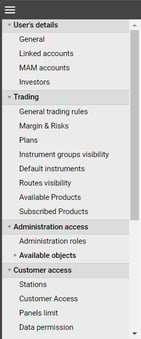
User groups
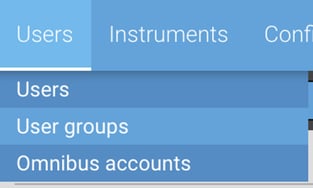
User groups is similar to Users, but it gives you access to settings of entire User groups.
Just like Users, accessing a User group gives you access to settings which apply to all users within that group.
Instruments
Instruments, as the name suggests, gives you access to all instruments available for trading on TradeLocker.
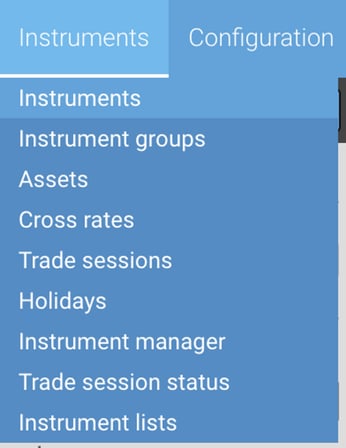
Here, you can check unique instruments such as BTC, US30, XAUUSD etc., but you can also access entire instrument groups. Examples of instrument groups are Cryptos, Commodities, Forex, Energies, Indices, etc.
Operations
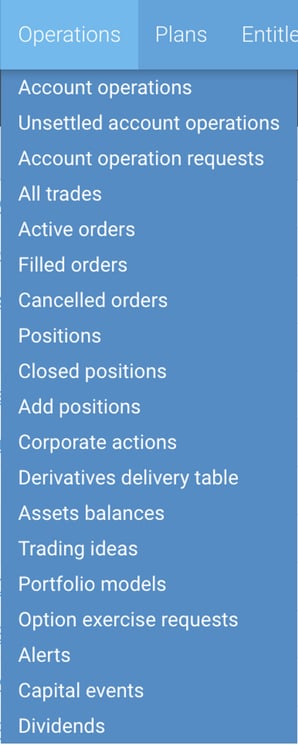
In the Operations tab, you can access various user specific reports. If you need to look at active orders, filled orders, positions etc., and then edit them or look into different cases more specifically, this is the place to do it.
Plans
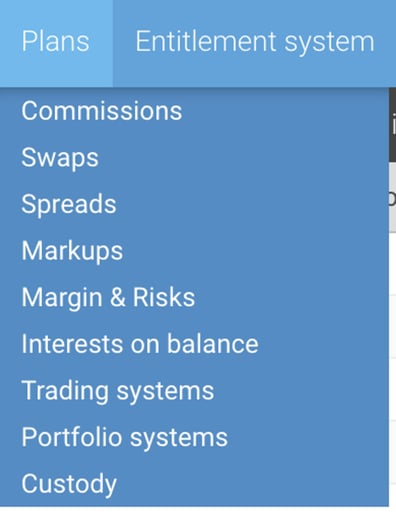
Plans is a section where you go when you need to edit your currently visible plans. Every broker and prop firm has specific rules regarding margins, swaps, commissions, spreads, markups etc. Each of these categories requires a separate plan.
Reports
In the Reports tab, you have access to all of your currently visible reports.
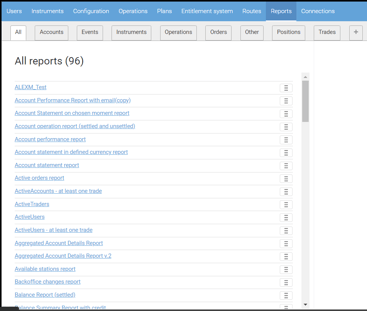
If, for example, you want to look into an event's history report, you can do from the "Reports" section.